 CloudConsole
How to add my IP to an AWS security group
In the EC2 console open Security Groups, choose the group, Edit inbound rules, Add rule, pick the port and set Source to My IP, which fills in your current public address as a /32. From the CLI, run aws ec2 authorize-security-group-ingress with --cidr set to your IP/32. Add a description so the rule can be found and removed later, and prefer Session Manager or a VPN for regular access.
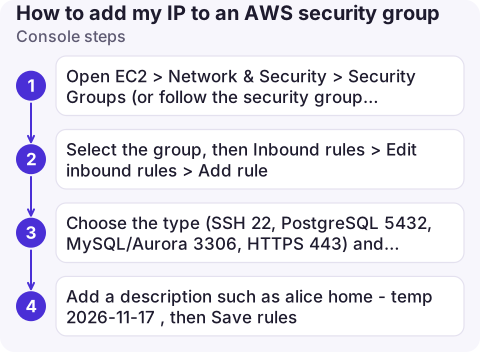
Console steps
- Open EC2 > Network & Security > Security Groups (or follow the security group link from the instance or RDS database).
- Select the group, then Inbound rules > Edit inbound rules > Add rule.
- Choose the type (SSH 22, PostgreSQL 5432, MySQL/Aurora 3306, HTTPS 443) and set Source to My IP.
- Add a description such as
alice home - temp 2026-11-17, then Save rules.
The change applies immediately to every resource using the group; there's nothing to restart.
CLI steps
MYIP=$(curl -s https://checkip.amazonaws.com)

aws ec2 authorize-security-group-ingress --group-id sg-0123456789abcdef0 \
  --ip-permissions "IpProtocol=tcp,FromPort=5432,ToPort=5432,IpRanges=[{CidrIp=${MYIP}/32,Description='alice temp access'}]"

# Check what's open
aws ec2 describe-security-group-rules \
  --filters Name=group-id,Values=sg-0123456789abcdef0 \
  --query 'SecurityGroupRules[?!IsEgress].[SecurityGroupRuleId,IpProtocol,FromPort,CidrIpv4,Description]' --output table

# Remove it when you're done
aws ec2 revoke-security-group-ingress --group-id sg-0123456789abcdef0 \
  --security-group-rule-ids sgr-0123456789abcdef0
checkip.amazonaws.com returns the IP AWS sees for you. If you connect over IPv6, use Ipv6Ranges=[{CidrIpv6=YOUR_IPV6/128}] instead of IpRanges.
Check before and after
- Is it the right group? Instances and databases can have several; the rule must be on one attached to the resource. For RDS, look under Connectivity & security.
- Can the resource be reached from the internet at all? It needs a public IP (RDS: Publicly accessible) in a subnet routed to an internet gateway. A private database won't become reachable by adding your IP; see RDS connection timed out.
- Network ACLs on the subnet can still block the port or the return traffic.
- Your IP changes on mobile networks, VPNs and many home connections. If it stops working tomorrow, check
checkipagain.
Common mistakes
- Using 0.0.0.0/0 "just for now". SSH and database ports open to the world are found by scanners within minutes.
- Leaving temporary rules forever. Date them in the description and remove them; old home IPs end up belonging to someone else.
- Opening SSH at all. Session Manager needs no inbound rules, and its port forwarding reaches private databases too.
- Teams sharing access: use a managed prefix list of office/VPN ranges referenced by the group, rather than many personal /32 rules.
Questions
How do I allow my IP in an AWS security group?
Edit the group's inbound rules, add a rule for the port, and choose My IP as the source. From the CLI, use authorize-security-group-ingress with your IP as a /32 CIDR.
How do I find my public IP for an AWS security group?
Open https://checkip.amazonaws.com or use the My IP option in the console, which detects it for you.
Do security group changes need a restart?
No. Rule changes apply immediately to all resources using the group.

Temporary access rules are easy to forget once the incident is over. CloudConsole, a phone app for AWS, is being built to show resources on your phone with production guardrails, which helps you review what was opened.
About the app → · Download on the App Store