 CloudConsole
CloudWatch alarm: EC2 StatusCheckFailed_AttachedEBS
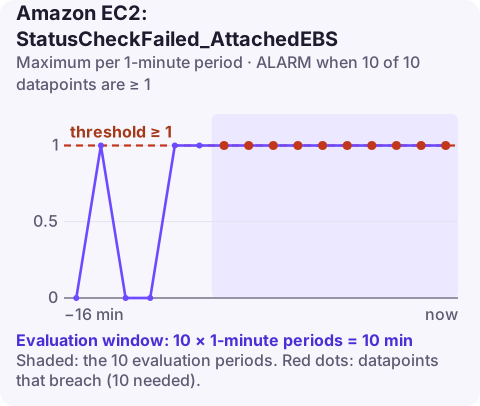
Alarm on AWS/EC2 StatusCheckFailed_AttachedEBS per InstanceId using the Maximum over 60 seconds, firing when it is greater than or equal to 1 for 10 of 10 minutes. The metric turns to 1 when an instance cannot reach one or more of its attached EBS volumes or complete I/O on them, so the alarm means storage has been impaired for ten minutes straight.
What the metric measures
StatusCheckFailed_AttachedEBS is the third EC2 status check, alongside the system and instance checks. It asks one question every minute: can this instance reach every EBS volume attached to it and get I/O through? It reads 0 when the answer is yes and 1 when it is no. The check is available on Nitro-based instance types.
A failure can come from several places that you cannot see from inside the guest:
- a fault in the storage hardware or software behind the volume;
- a problem on the physical host that stops it reaching EBS;
- a network path between the instance and EBS that has broken.
From the application's side it looks like disk I/O that never completes: processes stuck waiting on the disk, request latency climbing, health checks timing out, often with CPU near idle. That last detail is the tell. A busy disk shows high utilisation; a disk the instance cannot reach shows nothing at all.
Recommended alarm settings
| Setting | Recommended value |
|---|---|
| Namespace | AWS/EC2 |
| Metric | StatusCheckFailed_AttachedEBS |
| Dimensions | InstanceId |
| Statistic | Maximum |
| Threshold | 1 |
| Period | 60 seconds |
| Datapoints to alarm | 10 |
| Evaluation periods | 10 |
| Comparison operator | GreaterThanOrEqualToThreshold |
Why ten one-minute periods
The metric is binary, so the threshold of 1 simply means "the check failed in that minute". The tuning is all in the window. Requiring 10 failed minutes in a row avoids paging you for a brief impairment that clears by itself, while still alerting well before most teams would notice a stalled disk from application symptoms alone.
Shorten the window, for example to 5 of 5, for databases or anything else where minutes of stalled I/O cause data or availability problems. Keep it at ten for stateless instances in an Auto Scaling group that will be replaced anyway.
This alarm is per instance. If you need to know which volume is affected, pair it with the per-volume VolumeStalledIOCheck alarm.
Create the alarm
aws cloudwatch put-metric-alarm \
  --alarm-name ec2-db-1-attached-ebs-check-failed \
  --alarm-description "db-1 cannot reach an attached EBS volume for 10 minutes" \
  --namespace AWS/EC2 \
  --metric-name StatusCheckFailed_AttachedEBS \
  --dimensions Name=InstanceId,Value=i-0123456789abcdef0 \
  --statistic Maximum \
  --period 60 \
  --evaluation-periods 10 \
  --datapoints-to-alarm 10 \
  --threshold 1 \
  --comparison-operator GreaterThanOrEqualToThreshold \
  --alarm-actions arn:aws:sns:eu-west-2:123456789012:oncall-alerts
When it fires
- Confirm the check and look for scheduled events.
aws ec2 describe-instance-status \ --instance-ids i-0123456789abcdef0 \ --query 'InstanceStatuses[].{AttachedEbs:AttachedEbsStatus.Status,System:SystemStatus.Status,Events:Events}' - Find the volumes involved. List them with describe-volumes filtered on
attachment.instance-id, then check each one's health withaws ec2 describe-volume-status --volume-ids vol-0123456789abcdef0. - Decide whether to wait. AWS may clear the underlying problem without you doing anything. For a non-critical instance, waiting is a legitimate choice.
- If you cannot wait: stop and start the instance, which moves it to a different host and re-establishes the storage path (a reboot does not). If one volume stays impaired, replace it with a new volume created from your latest snapshot.
- Afterwards, check file system consistency and application data, especially for databases that were mid-write when I/O stalled.
Stopping loses anything on instance-store volumes; check the instance type before you act. The usual mistake is to restart the application repeatedly while the disk underneath it is unreachable.
Questions
Is StatusCheckFailed_AttachedEBS available on every instance type?
It is reported for Nitro-based instance types. If the metric does not appear for an instance, check whether its type is built on Nitro.
How is this different from the system status check?
The system check covers the host the instance runs on. The attached EBS check covers the instance's path to its EBS volumes, which can fail while the host itself is healthy.
Can an alarm on this metric recover the instance automatically?
Do not count on the EC2 recover action here: it is built around system status check failures. If you need hands-off handling, trigger a stop and start from the alarm through EventBridge and a Systems Manager Automation runbook, and test it before you rely on it.
An unreachable EBS volume tends to surface as an application timing out, and the decision to wait or stop and start the instance is easier with the status check in front of you. CloudConsole, a phone app for AWS, is built to show alarms like this one with the instance's status on your phone.
Did it start after a deploy? What changed? on the app’s alarm screen lists the deploys and configuration changes from the hour before the alarm fired.
About the app → · Download on the App Store