 CloudConsole
Invalid base64 error when calling aws lambda invoke
AWS CLI v2 expects binary parameters such as --payload to be base64-encoded, so a plain JSON payload is rejected as Invalid base64. Add --cli-binary-format raw-in-base64-out to the command (or set cli_binary_format = raw-in-base64-out in your profile), or pass the payload from a file with fileb://event.json.
Why it happens
$ aws lambda invoke --function-name my-function --payload '{"orderId": 42}' out.json
Invalid base64: "{"orderId": 42}"
Lambda's Payload is a binary (blob) field in the API. AWS CLI version 1 sent whatever text you gave it. Version 2 changed the default so blob arguments are treated as base64, which means your JSON is decoded as if it were base64 and fails. Commands copied from older blog posts and tutorials hit this all the time.
Check which version you have with aws --version. If it starts with aws-cli/2, the rules on this page apply. A teammate on v1 can run the same command successfully, which is why the error often appears to be machine-specific when it is really version-specific.
Three ways to fix it
1. Per command: tell the CLI the input is raw text.
aws lambda invoke \
  --function-name my-function \
  --cli-binary-format raw-in-base64-out \
  --payload '{"orderId": 42}' \
  out.json
cat out.json
2. From a file without the flag: fileb:// sends the file's bytes as they are.
aws lambda invoke --function-name my-function --payload fileb://event.json out.jsonNote that file:// (without the b) is still treated as base64 under the default setting, so file://event.json fails the same way.
3. Permanently for a profile:
aws configure set cli_binary_format raw-in-base64-out --profile defaultThat restores v1 behaviour for every blob parameter in that profile, so scripts written for v1 keep working.
Read the result properly
The last argument, out.json, is required: it's where the function's response is written. What the command prints to the terminal is only metadata:
{
    "StatusCode": 200,
    "FunctionError": "Unhandled",
    "ExecutedVersion": "$LATEST"
}
StatusCode: 200 only means Lambda accepted the call. If FunctionError is present, your code threw, and out.json holds the error. To see the end of the function's log in the same call:
aws lambda invoke --function-name my-function \
  --cli-binary-format raw-in-base64-out --payload '{"orderId": 42}' \
  --log-type Tail --query LogResult --output text out.json | base64 -d
LogResult holds only the last 4 KB of the invocation's log, base64-encoded. For anything longer, read the function's log group in CloudWatch Logs.
Related gotchas
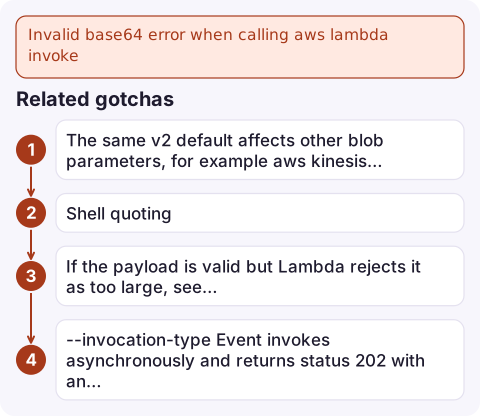
- The same v2 default affects other blob parameters, for example
aws kinesis put-record --dataandaws kms encrypt --plaintext. The same fixes apply. - Shell quoting: in PowerShell and Windows
cmd, inline JSON needs different escaping. A payload file withfileb://avoids quoting problems on every platform. - If the payload is valid but Lambda rejects it as too large, see RequestEntityTooLargeException; synchronous payloads are capped at 6 MB.
--invocation-type Eventinvokes asynchronously and returns status 202 with an empty response file. Use it only when you don't need the result.
Questions
What does --cli-binary-format raw-in-base64-out do?
It tells AWS CLI v2 that blob arguments you type are raw bytes, which the CLI base64-encodes itself before sending. It restores the AWS CLI v1 behaviour.
Why does aws lambda invoke fail with invalid base64 using file://?
In CLI v2, file:// content for a blob parameter is still interpreted as base64. Use fileb:// to send the file's bytes as they are, or add --cli-binary-format raw-in-base64-out.
How do I see the Lambda response from the CLI?
The response body is written to the output file you name at the end of the command, such as out.json. The terminal shows only the status code and any FunctionError.

Manually invoking a function is a common step when checking a fix after an alert. CloudConsole, a phone app for AWS, is built to show the function's alarms and recent log lines on your phone so you can see whether it has recovered.
Did it start after a deploy? What changed? on the app’s alarm screen lists the deploys and configuration changes from the hour before the alarm fired.
About the app → · Download on the App Store