 CloudConsole
How to connect to an EKS cluster
Run aws eks update-kubeconfig --region eu-west-2 --name CLUSTER (add --profile or --role-arn if needed). It writes a context to ~/.kube/config that calls aws eks get-token for authentication, so kubectl uses your AWS identity. Then run kubectl get nodes. Your IAM identity must also be granted access inside the cluster, through an EKS access entry or the aws-auth ConfigMap, or you'll get Unauthorized.
Steps
# 1. Confirm which AWS identity you're using
aws sts get-caller-identity --profile prod

# 2. List clusters in the Region
aws eks list-clusters --region eu-west-2 --profile prod

# 3. Write the kubeconfig entry
aws eks update-kubeconfig --region eu-west-2 --name prod --profile prod --alias prod-euw2

# 4. Test
kubectl get nodes
kubectl config current-context
With --profile, the profile name is saved in the kubeconfig (as AWS_PROFILE for the token command), so later kubectl calls use it even if your shell's default differs. --alias gives the context a readable name instead of the cluster ARN.
Without kubectl: the console
The EKS console's Resources tab shows workloads, pods and nodes, and the Compute tab shows node groups, using the same access rules: if your console role has no access entry, you'll see a message that your current IAM principal doesn't have access to Kubernetes objects. That's a quick way to check access before debugging kubeconfig.
Useful options
| Option | Use |
|---|---|
--role-arn | Assume a role for cluster access (the role must have an access entry) |
--alias | Context name, e.g. prod-euw2 |
--user-alias | User entry name in kubeconfig |
--kubeconfig | Write to a separate file instead of ~/.kube/config |
--dry-run | Print the config instead of writing it |
Switch between clusters with kubectl config use-context prod-euw2. In CloudShell the AWS CLI and kubectl are preinstalled, which helps when you're away from your own machine.
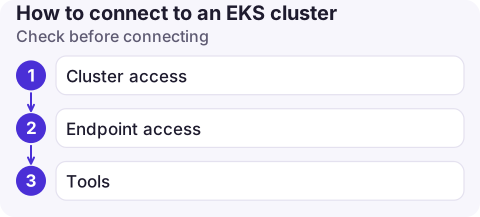
Check before connecting
- Cluster access: open the cluster's Access tab in the EKS console, or run
aws eks list-access-entries --cluster-name prod, and confirm your role ARN (not the session ARN) is listed with a policy. Only the cluster creator has access by default. - Endpoint access: if the API server endpoint is private only, you must be inside the VPC (VPN, bastion or Session Manager port forwarding); otherwise kubectl times out.
- Tools: an old AWS CLI or kubectl can produce
exec plugin: invalid apiVersionerrors; update both, then re-runupdate-kubeconfig.
Common errors
error: You must be logged in to the server (Unauthorized): your identity isn't mapped; see EKS Unauthorized.Forbidden: mapped, but RBAC or the access policy doesn't allow the action.dial tcp ...:443: i/o timeout: no network path to the endpoint (private endpoint, firewall, or the public endpoint's allowed CIDRs exclude you).Token has expired and refresh failedor ExpiredToken: your SSO session expired; runaws sso login --profile prod.No cluster found for name: wrong Region or account.
Questions
How do I connect kubectl to an EKS cluster?
Run aws eks update-kubeconfig --region REGION --name CLUSTER, then kubectl get nodes. Your IAM identity needs an access entry or aws-auth mapping in the cluster.
How do I use a specific AWS profile with EKS update-kubeconfig?
Add --profile NAME. The profile is stored in the kubeconfig, so kubectl uses it for every call to that cluster.
Where does aws eks update-kubeconfig write the config?
To ~/.kube/config by default, or to the file given with --kubeconfig or the KUBECONFIG environment variable.

Getting kubectl working is the first hurdle in many Kubernetes incidents. CloudConsole, a phone app for AWS, is being built to show alarms, logs and resources on your phone, so you can follow the incident while you get to a terminal.
About the app → · Download on the App Store