 CloudConsole
How to request a service quota increase in AWS
Open the Service Quotas console, choose the service, find the quota, and choose Request increase at account level with the new value. From the CLI, look up the quota code with list-service-quotas, then run aws service-quotas request-service-quota-increase --service-code CODE --quota-code L-XXXXXXXX --desired-value N. Quotas are per Region, many small increases are approved automatically, and some quotas are fixed and can't be raised.
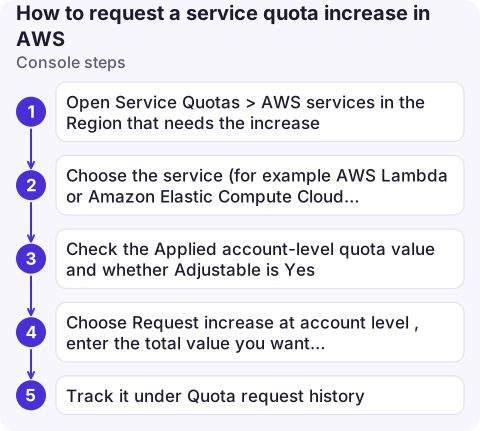
Console steps
- Open Service Quotas > AWS services in the Region that needs the increase.
- Choose the service (for example AWS Lambda or Amazon Elastic Compute Cloud (Amazon EC2)), then the quota.
- Check the Applied account-level quota value and whether Adjustable is Yes.
- Choose Request increase at account level, enter the total value you want (not the difference), and submit.
- Track it under Quota request history. Larger requests become a support case, which you can follow in the Support Center.
CLI steps
# Find the quota code by name
aws service-quotas list-service-quotas --service-code lambda \
  --query "Quotas[?contains(QuotaName, 'Concurrent')].[QuotaName,QuotaCode,Value,Adjustable]" --output table

aws service-quotas list-service-quotas --service-code ec2 \
  --query "Quotas[?contains(QuotaName, 'On-Demand')].[QuotaName,QuotaCode,Value]" --output table

# Request the new total
aws service-quotas request-service-quota-increase --region eu-west-2 \
  --service-code lambda --quota-code L-B99A9384 --desired-value 3000

# Follow up
aws service-quotas list-requested-service-quota-change-history --service-code lambda \
  --query 'RequestedQuotas[].[QuotaName,DesiredValue,Status,Created]' --output table
Status moves through PENDING and CASE_OPENED to APPROVED, DENIED or CASE_CLOSED. Use aws service-quotas list-aws-default-service-quotas to compare with the default.
Two codes worth remembering: L-B99A9384 is Lambda Concurrent executions, and L-1216C47A is EC2 Running On-Demand Standard (A, C, D, H, I, M, R, T, Z) instances, which is counted in vCPUs, not instances. New accounts can start below the published defaults, so read your applied value rather than assuming.
Before you ask
- Check usage, not just the error. Many quotas have a CloudWatch usage metric in the
AWS/Usagenamespace, visible on the quota's page; you can alarm on it before you hit the limit. - Right Region, right account. Quotas are per account and per Region; a request in us-east-1 doesn't help eu-west-2.
- Is the limit really the problem? A runaway function or Auto Scaling loop will use a higher quota too. See find the throttled Lambda.
- Explain the use case for large jumps; reviewers may ask, and requests for big multiples of current usage can be reduced.
Common mistakes
- Requesting during an incident and waiting. Auto-approved requests apply in minutes, but reviewed ones can take days. Ask before launches.
- Entering the increment ("+500") instead of the new total.
- Hitting a non-adjustable quota, such as the Lambda payload or environment variable size. Those need a design change; see the 4 KB env var limit.
- Forgetting API rate limits. Errors like Rate exceeded are often fixed with backoff, not a quota.
Questions
How do I request a quota increase in AWS?
In the Service Quotas console choose the service and quota and select Request increase at account level, or run aws service-quotas request-service-quota-increase with the service code, quota code and desired value.
How long does an AWS quota increase take?
Small increases are often approved automatically within minutes. Larger ones are reviewed through a support case and can take longer.
Are AWS service quotas per Region?
Most are per account per Region, so request the increase in each Region that needs it.

Quota limits often show up first as throttling alarms during a traffic spike. CloudConsole, a phone app for AWS, is being built to show those alarms and metrics on your phone, so you can tell a quota problem from an application bug.
About the app → · Download on the App Store