 CloudConsole
CloudWatch alarm: RDS FreeStorageSpace
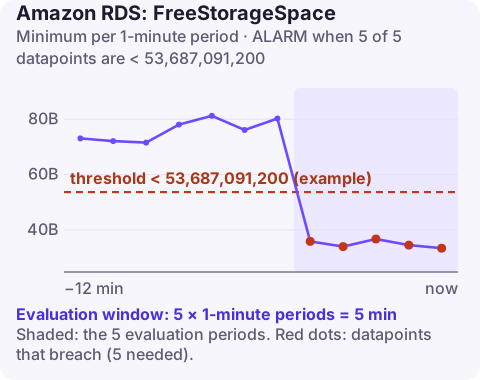
Alarm on AWS/RDS FreeStorageSpace per DBInstanceIdentifier using the Minimum over 60 seconds, firing when it is below your threshold for 5 consecutive minutes. Set the threshold to about 10% of allocated storage in bytes. If storage autoscaling is enabled or you resize often, AWS advises against this alarm, because the allocation it is based on keeps changing.
Why this alarm matters
When an RDS instance runs out of storage it goes into the storage-full state and stops accepting writes. Getting out of it means adding storage, which takes time, during a period when your application is already failing. This alarm is designed to fire while you still have room to act calmly.
What fills storage in practice: data growth, of course, but also less obvious items: binary logs or WAL retained for a replica or replication slot that has stopped consuming, temporary files from large queries, bloated tables on PostgreSQL that autovacuum cannot keep up with, and general or slow query logs left enabled.
The Minimum statistic is deliberate here: storage drops in steps when large files are written, and the lowest point in each minute is what matters for the storage-full risk.
Recommended alarm settings
| Setting | Recommended value |
|---|---|
| Namespace | AWS/RDS |
| Metric | FreeStorageSpace |
| Dimensions | DBInstanceIdentifier |
| Statistic | Minimum |
| Threshold | Depends on your situation (about 10% of allocated storage, in bytes) |
| Period | 60 seconds |
| Datapoints to alarm | 5 |
| Evaluation periods | 5 |
| Comparison operator | LessThanThreshold |
Computing the threshold
aws rds describe-db-instances \
  --db-instance-identifier orders-db \
  --query "DBInstances[0].[AllocatedStorage,MaxAllocatedStorage]"
AllocatedStorage is in GiB. For 500 GiB, 10% is 50 GiB, which is 53,687,091,200 bytes. If MaxAllocatedStorage is set, storage autoscaling is on and the allocation will move, so this fixed threshold becomes wrong after each scale event.
Also consider the rate of growth. If you add 20 GiB a day, 50 GiB is less than three days of warning. Pick a threshold that gives at least as much lead time as your process for approving and applying a storage increase.
Create the alarm
aws cloudwatch put-metric-alarm \
  --alarm-name rds-orders-db-free-storage-10pct \
  --alarm-description "orders-db free storage below 10% of 500 GiB" \
  --namespace AWS/RDS \
  --metric-name FreeStorageSpace \
  --dimensions Name=DBInstanceIdentifier,Value=orders-db \
  --statistic Minimum \
  --period 60 \
  --evaluation-periods 5 \
  --datapoints-to-alarm 5 \
  --threshold 53687091200 \
  --comparison-operator LessThanThreshold \
  --alarm-actions arn:aws:sns:eu-west-2:123456789012:oncall-alerts
When it fires
- Find what is growing: table and index sizes, log sizes (describe-db-log-files), and on PostgreSQL, inactive replication slots holding WAL (
SELECT slot_name, active FROM pg_replication_slots;). - Remove the easy wins: drop an abandoned replication slot, turn off verbose logging, remove old data you no longer need.
- Add storage with modify-db-instance and
--allocated-storage. After a storage change, further storage modifications are blocked for a period (at least six hours, and until optimisation finishes), so add enough in one step. - Consider storage autoscaling with a sensible maximum, and switch this alarm to a percentage-based one or rely on autoscaling events.
Questions
Which CloudWatch alarms should I set for RDS?
A practical baseline is CPUUtilization, FreeStorageSpace, FreeableMemory, DatabaseConnections, ReadLatency and WriteLatency, plus ReplicaLag on replicas. Aurora clusters add metrics such as DBLoad and BufferCacheHitRatio.
Should I use this alarm with RDS storage autoscaling?
AWS recommends against it, because autoscaling changes the allocated size and a fixed byte threshold stops being meaningful. Monitor autoscaling events and the maximum storage limit instead.
Storage alarms on a database are best handled before they become an outage, and usually there is still time to plan. CloudConsole, a phone app for AWS, is built to show the alarm and the storage trend on your phone so you can judge how urgent it is.
Did it start after a deploy? What changed? on the app’s alarm screen lists the deploys and configuration changes from the hour before the alarm fired.
About the app → · Download on the App Store