 CloudConsole
How to increase EBS volume size
Modify the volume to the new size (EC2 console, Volumes, Modify volume, or aws ec2 modify-volume --size), then extend the partition and filesystem inside the operating system: growpart plus resize2fs for ext4 or xfs_growfs for XFS on Linux, or Extend Volume in Disk Management on Windows. No stop or reboot is needed on current instance types. You can't shrink a volume afterwards.
Step 1: snapshot, then modify the volume
# Safety net
aws ec2 create-snapshot --volume-id vol-0abc1234def567890 --description "before resize"

# Grow to 200 GiB
aws ec2 modify-volume --volume-id vol-0abc1234def567890 --size 200

# Watch progress: modifying -> optimizing -> completed
aws ec2 describe-volumes-modifications --volume-ids vol-0abc1234def567890 \
  --query 'VolumesModifications[].[ModificationState,Progress,TargetSize]' --output text
In the console: open the Amazon EC2 console, go to Volumes, select the volume, choose Actions > Modify volume, enter the new size and confirm. You can extend the filesystem as soon as the state reaches optimizing; you don't have to wait for completed.
Step 2: extend the partition and filesystem (Linux)
lsblk              # see the disk, its partition and sizes
df -hT /           # filesystem type (xfs or ext4) and current size

# If the filesystem sits on a partition (e.g. nvme0n1p1), grow the partition first
sudo growpart /dev/nvme0n1 1        # note the space: disk, then partition number

# Then the filesystem
sudo xfs_growfs -d /                 # XFS (Amazon Linux default) - takes the mount point
sudo resize2fs /dev/nvme0n1p1        # ext4 (Ubuntu default) - takes the device
df -h /                              # confirm
On Nitro instances, EBS volumes appear as NVMe devices (/dev/nvme0n1, /dev/nvme1n1…) even if you attached them as /dev/xvdf. A data volume formatted without a partition table skips growpart: run xfs_growfs or resize2fs directly.
Step 2 on Windows
Open Disk Management (or diskmgmt.msc), choose Rescan Disks from the Action menu, right-click the volume and choose Extend Volume, accepting the new unallocated space. In PowerShell, Resize-Partition with the size from Get-PartitionSupportedSize does the same.
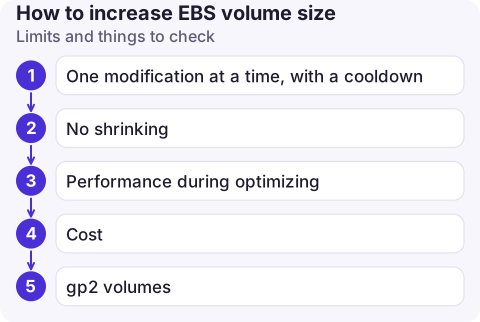
Limits and things to check
- One modification at a time, with a cooldown. After modifying a volume you must wait at least six hours, and the previous modification must have finished, before modifying it again. Size generously.
- No shrinking. To make a volume smaller, create a new smaller volume and copy the data.
- Performance during optimizing stays within the old and new specs but may vary; avoid doing it in a heavy batch window.
- Cost follows the new size immediately.
- gp2 volumes: consider changing the type to gp3 in the same modification; gp3 decouples IOPS from size.
Common mistakes
- Resizing the volume and stopping there. The OS still sees the old size until you grow the partition and filesystem.
- Running
resize2fson XFS (orxfs_growfson ext4); check the type withdf -T. - Typing
growpart /dev/nvme0n1p1instead ofgrowpart /dev/nvme0n1 1. - Treating a full disk as a sizing problem only. Check what filled it (logs, Docker images, temp files) or it fills again; see RDS storage full for the managed-database equivalent.
Questions
Can I increase EBS volume size without stopping the instance?
Yes. Elastic Volumes lets you grow an attached volume while it is in use; you then extend the filesystem online.
Why doesn't df show the new size?
The filesystem hasn't been extended. Grow the partition with growpart (if there is one) and then the filesystem with xfs_growfs or resize2fs.
How often can I resize an EBS volume?
After a modification you have to wait at least six hours before the next one, and the previous modification must be complete.

Disk-full alerts have a habit of arriving at night. CloudConsole, a phone app for AWS, is built to show those alarms and the volumes behind them on your phone, with guardrails on any production change.
About the app → · Download on the App Store