 CloudConsole
How to stop an EC2 instance in an Auto Scaling group
If you simply stop an instance that belongs to an Auto Scaling group, the group marks it unhealthy, terminates it and launches a replacement. Put the instance into Standby first (aws autoscaling enter-standby), then stop it; start it and run exit-standby when you are done. To stop the whole group, set its desired and minimum capacity to zero, which terminates rather than stops.
Why a plain stop doesn't work
Auto Scaling health checks treat any instance that is not in the running state as unhealthy. Shortly after you stop one, the group terminates it (deleting its root volume unless that volume is set to persist) and launches a new instance to restore the desired capacity. Anything you were investigating on that instance is gone.
Pick the option that matches what you want:
| Goal | Use |
|---|---|
| Stop one instance temporarily (debugging, patching) and bring it back | Standby |
| Stop the group from replacing anything for a while | Suspend the HealthCheck and ReplaceUnhealthy processes |
| Take an instance out of the group for good | Detach it |
| Turn the whole group off overnight | Scale to zero (instances are terminated, not stopped) |
Console steps (standby)
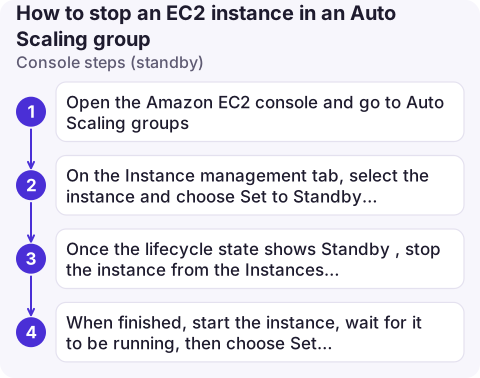
- Open the Amazon EC2 console and go to Auto Scaling groups. Select the group.
- On the Instance management tab, select the instance and choose Set to Standby from the actions menu. Decide whether to launch a replacement; if you don't, desired capacity drops by one.
- Once the lifecycle state shows Standby, stop the instance from the Instances page as normal.
- When finished, start the instance, wait for it to be running, then choose Set to InService for it in the group.
CLI steps
# Move into standby without launching a replacement
aws autoscaling enter-standby \
  --auto-scaling-group-name web-asg \
  --instance-ids i-0123456789abcdef0 \
  --should-decrement-desired-capacity

aws ec2 stop-instances --instance-ids i-0123456789abcdef0

# ...later: start it and return it to service
aws ec2 start-instances --instance-ids i-0123456789abcdef0
aws ec2 wait instance-running --instance-ids i-0123456789abcdef0
aws autoscaling exit-standby \
  --auto-scaling-group-name web-asg \
  --instance-ids i-0123456789abcdef0
To pause replacements across the group instead:
aws autoscaling suspend-processes --auto-scaling-group-name web-asg \
  --scaling-processes HealthCheck ReplaceUnhealthy
# resume when finished
aws autoscaling resume-processes --auto-scaling-group-name web-asg \
  --scaling-processes HealthCheck ReplaceUnhealthy
Check before and after
- Minimum capacity. Decrementing desired capacity fails if it would drop below the group's minimum. Lower the minimum first or let the group launch a replacement.
- Load balancer. An instance in Standby is deregistered from the group's target groups, so it stops receiving traffic before you stop it. Confirm with describe-target-health.
- Lifecycle state.
aws autoscaling describe-auto-scaling-instances --instance-ids i-0123456789abcdef0showsStandbyorInService. - Afterwards, make sure suspended processes are resumed. A group left with HealthCheck suspended will quietly keep broken instances forever.
Common mistakes
- Forgetting the instance is in Standby. It no longer counts towards scaling decisions and stays out of the load balancer until you exit standby.
- Relying on scale-in protection. It only stops the group choosing that instance during scale-in; it doesn't stop health-check replacement after you stop it.
- Setting desired capacity to 0 to "pause" the group. That terminates the instances. If you want stopped instances ready to resume quickly, look at a warm pool instead.
Questions
Can you stop an instance in an Auto Scaling group?
Yes, but put it into Standby (or suspend health-check replacement) first. Otherwise the group terminates the stopped instance and launches a new one.
How do I stop all instances in an Auto Scaling group from the AWS CLI?
Run aws autoscaling update-auto-scaling-group with --min-size 0 --desired-capacity 0. This terminates the instances; set the values back to bring new ones up.
Does detaching an instance stop it?
No. Detaching removes it from the group and leaves it running as a standalone instance that you then manage yourself.

Auto Scaling quietly replacing an instance you meant to keep is the kind of surprise that shows up in a late-night alert. CloudConsole, a phone app for AWS, is built to show group capacity and instance changes on your phone.
About the app → · Download on the App Store